This is default featured slide 1 title

Go to Blogger edit html and find these sentences.Now replace these sentences with your own descriptions.

This is default featured slide 2 title

Go to Blogger edit html and find these sentences.Now replace these sentences with your own descriptions.

This is default featured slide 3 title

Go to Blogger edit html and find these sentences.Now replace these sentences with your own descriptions.

This is default featured slide 4 title

Go to Blogger edit html and find these sentences.Now replace these sentences with your own descriptions.

This is default featured slide 5 title

Go to Blogger edit html and find these sentences.Now replace these sentences with your own descriptions.

Menghilangkan Desktop Icon

Tujuannya sama seperti pada artikel terdahulu Membuat Autohide Shortcut di Desktop, yaitu membersihkan tampilan depan layar komputer windows kita dari icon, shortcut, file dan folder, agar layar terlihat bersih.
Caranya yaitu klik kanan di area yang kosong di desktop --> klik Arrange Icons By --> uncheck Show Desktop Icons


Untuk  menampilkan kembali lakukan hal yang sama, yaitu klik kanan di area desktop --> klik Arrange Icons By --> Check Show Desktop Icons.


Semoga bermanfaat.

Download this article in PDF


Tag : Membersihkan Icon di layar desktop


Cara mengetahui tanggal pertama kali Blog atau Website dipublish

Untuk mengetahui kapan suatu website atau blog pertama kali dipublish dan terindex di google, begini caranya :
Jalankan browser kemudian buka google.com
Masukkan kata kunci pada kolom pencarian, kata kuncinya yaitu: inurl:http://komputertipstrik.blogspot.com (silakan ganti alamat url sesuai dengan web yang anda inginkan), contoh lain misal: inurl:http://www.detik.com
kemudian Klik search

Setelah ada hasil pencarian, kemudian masuk ke address bar .. lalu tambahkan kode berikut ini : &as_qdr=y15 disamping/setelah kode yang sudah ada,


kemudian klik go atau tekan enter, akan tampil hasil searching yang menampilkan tanggal pertama kali web terpublish dan terindex di google dari blog/web yang dimaksud.


Semoga bermanfaat.

Note: Pada saat ini (sept2009) untuk blog/site yang lama  infonya tidak akurat lagi, tapi untuk blog/site yang  relatif baru masih bisa dipakai


Download this article in PDF


tags: melihat tanggal pertama kali publish web/blog , menampilkan waktu pertama kali web dipublish, how to see first publish date of the web / blog.


Baca Juga :
Cara Mencari Blogger Satu Kota atau Satu Daerah

Windows Run Command


Appwiz.cpl --> Used to run Add/Remove wizard
Calc --> Calculator
Cfgwiz32 --> ISDN Configuration Wizard
Charmap --> Character Map
Chkdisk --> Repair damaged files
Cleanmgr --> Cleans up hard drives
Clipbrd --> Windows Clipboard viewer
Control --> Displays Control Panel
Cmd --> Opens a new Command Window
Control mouse --> Used to control mouse properties
Dcomcnfg --> DCOM user security
Debug --> Assembly language programming tool
Defrag --> Defragmentation tool

Drwatson --> Records programs crash & snapshots
Dxdiag --> DirectX Diagnostic Utility
Explorer --> Windows Explorer
Fontview --> Graphical font viewer
Fsmgmt.msc --> Used to open shared folders
Firewall.cpl --> Used to configure windows firewall
Ftp - ftp program
Hostname --> Returns Computer's name
Hdwwiz.cpl --> Used to run Add Hardware wizard
Ipconfig --> Displays IP configuration for all network adapters
Logoff --> Used to logoff the computer
MMC --> Microsoft Management Console
Msconfig --> Configuration to edit startup files
Mstsc --> Used to access remote desktop
Msinfo32 --> Microsoft System Information Utility
Nbtstat --> Displays stats and current connections using NetBIOS over TCP/IP
Netstat --> Displays all active network connections
Nslookup--> Returns your local DNS server
Osk --> Used to access on screen keyboard
Perfmon.msc --> Used to configure the performance of Monitor.
Ping --> Sends data to a specified host / IP
Powercfg.cpl --> Used to configure power option
Regedit --> Registry Editor
Regwiz --> Registration wizard
Sfc /scannow --> System File Checker
Sndrec32 --> Sound Recorder
Shutdown --> Used to shutdown the windows
Spider --> Used to open spider solitaire card game
Sfc / scannow --> Used to run system file checker utility.
Sndvol32 --> Volume control for soundcard
Sysedit --> Edit system startup files
Taskmgr --> Task manager
Telephon.cpl --> Used to configure modem options.
Telnet --> Telnet program
Tracert --> Traces and displays all paths required to reach an internet host
Winchat --> Used to chat with Microsoft
Wmplayer --> Used to run Windows Media player
Wab --> Used to open Windows address Book.
WinWord --> Used to open Microsoft word (if program installed)
Winver --> Used to check Windows Version
Wupdmgr -->Takes you to Microsoft Windows Update
Write --> Used to open WordPad


Download this article in PDF


tags : List perintah run command, perintah perintah untuk run command

Artikel Terkait :
Windows Keyboard Shortcut

Menambahkan Folder Size di Tampilan Windows Explorer

Untuk mengetahui ukuran/ besarnya file di dalam suatu folder biasanya kita lakukan klik kanan pada folder tersebut kemudian klik properties. Ini dilakukan pada setiap folder yang akan kita lihat ukurannya.
Tips kali ini bagaimana caranya agar pada windows explorer menampilkan informasi folder size/ ukuran folder pada masing-masing folder ketika kita membuka atau meng-explore suatu drive(C, D,..) tanpa melakukan klik kanan.


Caranya yaitu kita harus menginstalkan program kecil semacam pluginnya untuk windows XP yang dapat di-download dari SourceForge.net atau klik disini untuk download zipnya, ukurannya sekitar 170KB.

Settingnya sebagai berikut:
Setelah download instalkan programnya
Setelah programnya terinstal, jalankan Windows explorer (shortcut: win+E)
Set tampilan Views pada Detail


Klik kanan pada salah satu kolom: name/size/type.. kemudian pilih / contreng : Folder Size


Semoga Bermanfaat.

Download this article in PDF


Tags: melihat ukuran folder, tampilkan folder size, mengetahui ukuran folder, menampilkan folder size, folder size di windows explorer,
 menampilkan ukuran size di windows explorer  


Baca Juga :
Menambahkan menu Copy to dan Move to pada klik kanan file di windows xp


Membuat Shortcut Alamat Website

Untuk menyimpan suatu alamat Website atau Blog supaya mudah untuk memanggilnya kembali di waktu yang akan datang, kita biasa menggunakan fasilitas bookmarks (firefox,opera) atau favorites (internet explorer).
Selain itu kita juga dapat menggunakan shortcut dari alamat yang bersangkutan yang bisa ditampilkan di desktop atau di dalam folder.
Berikut adalah bagaimana cara membuat shortcut dari suatu alamat website / alamat blog.
Buka Notepad (klik start -->All programs -->Accessories-->Notepad. Atau cara lain
klik Start-->klik Run--> Ketik notepad --> klik OK)
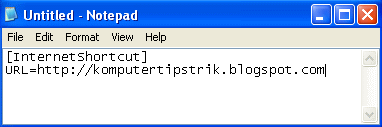
ketik kode berikut :

[InternetShortcut]
URL=http://komputertipstrik.blogspot.com
( ganti alamat URL sesuai dengan yang anda maksudkan)


Save file
File name : Nama file.url
Save as type : All Files
Encoding : ANSI


Semoga bermanfaat..
Download this article in PDF


tag: membuat shortcut URL

Baca Juga :
Membuat Autohide Shortcut di Desktop